Shadowrocket Setup Guide: Import and Connect
Follow this order: add your connection details → choose a mode → connect → verify → troubleshoot. First establish a repeatable manual connection, then adjust rules and automatic connection conditions.
Add Server: Add or Import
First, identify what kind of details you have. A single server, a server subscription, and a Config file are different things.
Open Home in Shadowrocket and find the SERVER group and Add Server. Before entering anything, check what you have: an address, port, and authentication details are for manual setup; a server share link or QR code is for importing a single server; a link that returns a server list is a server subscription. Config files containing rules, DNS, or policy settings are managed in Config. Although these are all URLs, they do not all belong in the same place.
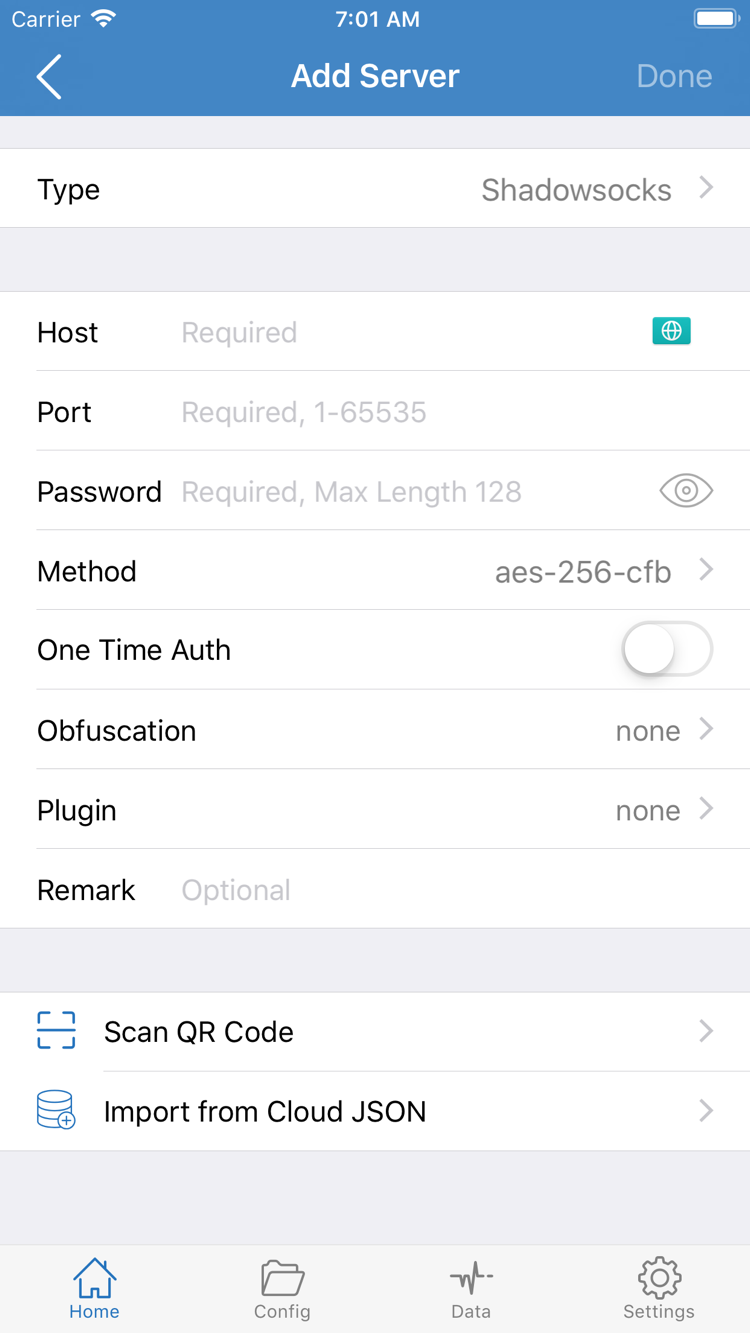
Enter Server Details Manually in Add Server
- Tap
Add Server, openType, and choose the protocol that matches your details. The selected protocol determines which fields appear.PasswordandMethodin the screenshot are examples for that type; not every protocol uses the same fields. - Enter the server address in
Hostand the port inPort. Enter only what each field asks for. Don’t paste a full share link into Host or add the port to the address and enter it twice. - Enter the authentication details and protocol options from your source. Check capitalization, leading or trailing spaces, and any line breaks added when copying. For TLS, transport, or server name settings, use the supplied values rather than guessing from the name.
- Use the on-screen save action to return to
Home, then check that the server appears underSERVER. A remark helps identify a server; identical remarks do not mean the addresses or authentication details are the same.
If you have a QR code for an existing server, use Scan QR Code on the Add Server screen. After scanning, check the detected Type, Host, and Port before saving. Import from Cloud JSON is for JSON content accepted by that option, not a general-purpose field for pasting subscription links. A successful import means the app recognized the details; it does not confirm that the remote server is reachable.
Existing Subscriptions: Server Lists vs. Config Files
For a server subscription, choose Subscribe under Add Server to match the type of details you have. Enter the full subscription address in URL, save, and wait for the list to load. Don’t alter or remove any part of the path or query parameters; they may be needed for authentication. Return to Home and check whether servers appear in the subscription group. If you see only the group name and no entries, resolve the list retrieval issue before trying to connect.
For a Config file subscription, open Config and use its Subscribe option to add the relevant configuration URL. After it loads, review the available files and select the one you want to use. Subscribe in Config and a server-list subscription do different jobs: the former manages configuration files, while the latter manages connection entries. Don’t choose between them based only on the word “subscription” in a link. For help organizing subscriptions, checking share formats, or setting an update schedule, see the subscription and server management manual.
At this point, you should be able to identify the server you plan to use in Home and whether you have a Config file for rule-based routing. Next, choose Global Routing rather than repeatedly toggling the connection switch.
Global Routing: Three Modes
Decide how you want to handle traffic, then check your Config file. A mode name is not a measure of connection quality.
Return to Home and tap Global Routing. This guide refers to the three modes as Config, Proxy, and Direct, matching the options shown in the app. After choosing one, return to Home and check the value displayed on the Global Routing row. Don’t rely on what you remember selecting last time.
| Mode | How It Works and When to Use It |
|---|---|
| Config | Uses the active Config file and its rules to choose a policy. Use it to check routing results. |
| Proxy | Routes traffic in proxy mode. Use it to test the selected server without rule-based routing. |
| Direct | Routes traffic directly. Useful as a local network comparison, but it does not confirm that a proxy server works. |
If you’re adding a server for the first time and don’t have a rule-based Config file ready, try Proxy to test the connection first. Once verified, switch to Config to check routing. Proxy is not a fix for every issue: changing modes won’t correct a server address, authentication, or local network problem.
What to Check in Config Mode
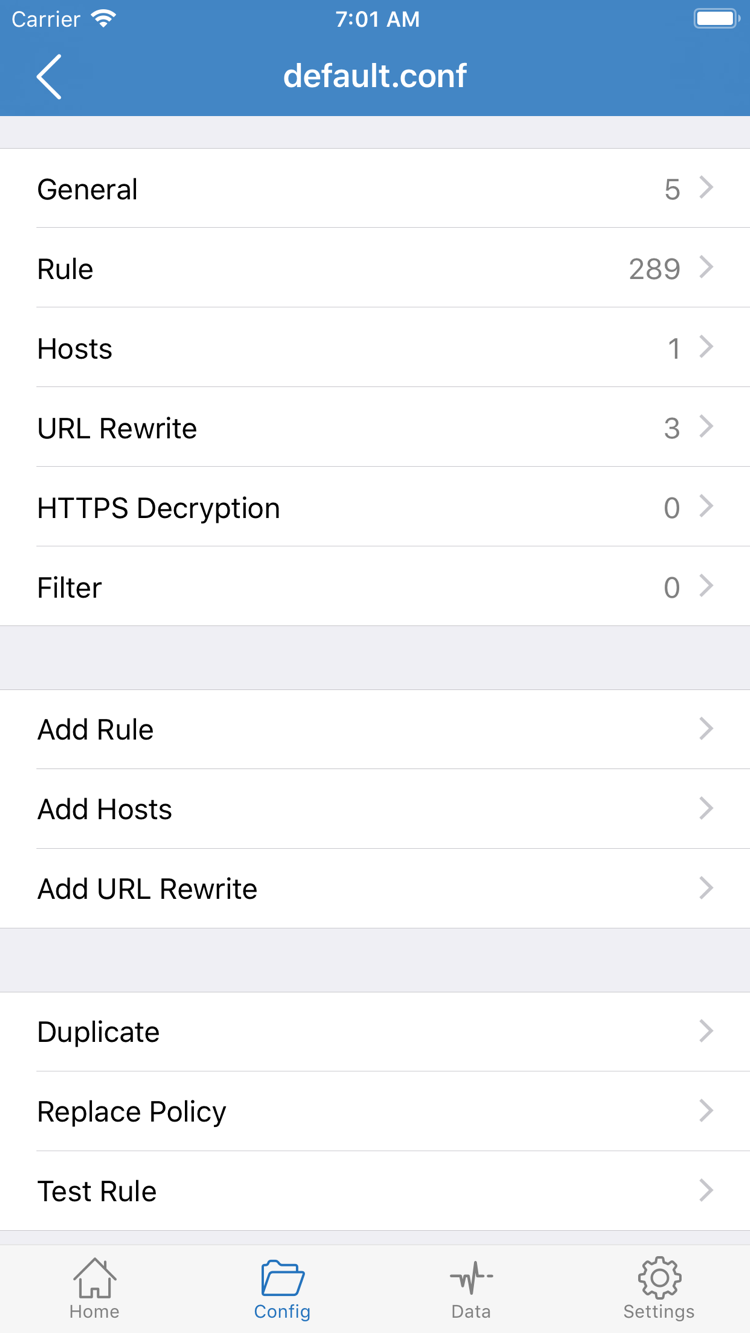
Before choosing Config, open Config and confirm that the selected file is the one you intend to use. When reviewing it, use the sections shown in the screenshot—General, Rule, Hosts, URL Rewrite, and HTTPS Decryption—to identify its contents. For a first connection, just review the existing settings; you don’t need to enable each feature to complete this guide. In particular, HTTPS Decryption is not required for a standard connection.
In Rule, check which rule matches the destination, what policy that rule uses, and what happens as a fallback. Rules are generally evaluated in order; an earlier match may prevent later rules from being considered for the same request. The example below is only to illustrate the syntax, not a replacement for your current configuration:
DOMAIN-SUFFIX,example.com,PROXY
IP-CIDR,192.168.0.0/16,DIRECT
FINAL,PROXY
These examples show a domain suffix match, a private network address range, and a final policy. PROXY and DIRECT are policy terms, not server addresses. Before using Add Rule, check where the new rule will be inserted in relation to existing rules. Adding a rule without checking the order may not produce the expected result. See the quick reference for rule keywords and DNS; for now, keep changes minimal and easy to verify.
You should now have a clear combination: the selected server, the current Global Routing mode, and the active Config file. Keep track of all three if a connection fails so you can identify which layer to check.
Home: Connection and System Authorization
Select a server before turning on the switch. Check system authorization and remote availability separately.
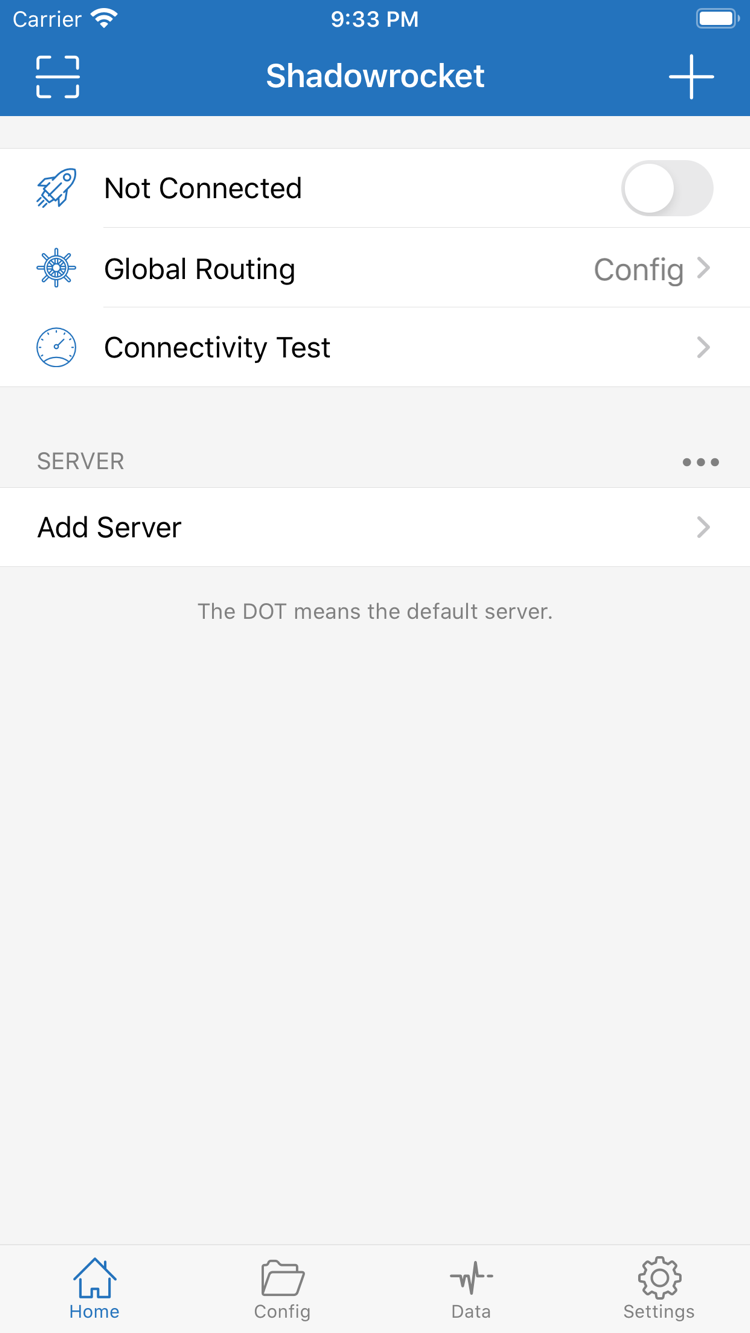
Return to Home, select the server you want to use from the SERVER group, and check that it’s marked as selected. If a group contains several servers, viewing the list doesn’t mean one of them is selected. The subscription group name is not the server currently in use. After selecting a server, confirm that Global Routing is still set to the mode you chose in the previous step.
- Find the connection switch at the top of Home.
Not Connectedin the screenshot means there was no active connection when it was taken; it does not indicate an import failure. - Turn on the connection switch. The first time you connect, the system may ask to add a VPN configuration. Confirm that Shadowrocket initiated the request, then follow the system prompts to allow it and complete any required device authentication.
- Return to Shadowrocket and wait for a status update. If you canceled authorization, start the connection again and complete the authorization before changing the server password or rules.
- Once the connection is established, keep the server and mode unchanged and proceed to verify actual access. Before testing, don’t update the subscription, switch servers, and change DNS all at once.
The system VPN configuration lets the device route network traffic according to the app’s settings; it does not create a remote server for you. Authorization does not confirm that your subscription is active, server authentication is correct, or the remote network is available. Likewise, if system authorization is incomplete, testing server details is no substitute for completing it.
If the switch turns off shortly after you turn it on, check for a specific error and see whether another VPN configuration is already using the connection. To switch, stop the existing connection first, then try Shadowrocket again. Don’t remove device management settings if you don’t know their source or purpose. If the switch stays on but webpages won’t load, leave the settings as they are and follow the verification and troubleshooting steps below.
Wait to configure On Demand until you’ve confirmed that a manual connection works. Automatic connection conditions add variables, making it harder to tell what triggered a reconnect and whether the server is available. First confirm that you can manually connect, verify access, and disconnect; then consider automation.
Connectivity Test: Verify the Connection
Test results, actual access, and rule matches are different kinds of evidence. Don’t judge by the switch alone.
With the connection switch on, run Connectivity Test from Home and check the result for the selected server using the current test method. The result can help you assess connectivity, but a single value cannot tell you whether every site is accessible, and a failed test does not necessarily mean the password is wrong. The test method and destination affect the result, so keep the test conditions consistent while troubleshooting.
- Verify a real request. Open a browser, visit a page you actually need, reload it, and check whether the content loads. Content that was already open may be cached, so it doesn’t confirm that a new connection worked.
- Check the current mode. In Proxy mode, first confirm that the selected server can complete the request. In Config mode, also check whether the destination matches the expected rule. Access in Direct mode does not mean the request used a proxy.
- Check different policies. Use destinations you know and are allowed to access to test requests that should use PROXY and DIRECT separately. In the app’s connection records, check the destination, matched rule, and policy. The records available and how long they are retained depend on the current app interface.
- Retest the same destination. If you need to make a change, adjust one variable and reload the same page. Note the mode, server, and results before and after the change so you don’t mistake differences between websites for the effect of a setting.
If Proxy works but Config does not, check the active Config file, rule order, and DNS before rebuilding a subscription. If neither mode works, start with the server and local network. If only one site fails, check its matching rule and service status rather than resetting everything.
Settings: Common Issues
Check each layer, from prerequisites through rules. Change one thing at a time, retest, and then decide what to check next.
No Servers in the List: Check the Import
If no servers appear after you save a subscription, first check that the link is complete, you used the right Subscribe option, and your local network can retrieve the list. School, work, or public Wi-Fi may require you to sign in first; if needed, compare on your own Wi-Fi and cellular network. If the subscription URL contains authentication details, check that it wasn’t truncated when copied, but don’t post the full link publicly. To check service status, use the management channel for your existing service rather than substituting an unfamiliar address.
Servers Listed but No Connection: Check the Server Details
Reopen the server editor and compare Type, Host, Port, and authentication details with the original information. Check the protocol first, then the additional settings it requires; changing a Password alone won’t fix an incorrect Type. Subscription entries may be overwritten when the list updates. Before making ongoing manual changes, confirm that the subscription data itself is correct. Keep any necessary backup before deleting or importing again; see the server management manual for details.
Connected but Pages Won’t Load: Check the Mode, Rules, and DNS
First, confirm which server is selected in Home, then check Global Routing. If the issue occurs only in Config, review the active file, the match order in Rule, and how FINAL is handled. Similar file names don’t guarantee identical contents. If domain names fail to load, check DNS settings in the Config file and whether your local network affects DNS requests. Changing DNS, servers, and rule files at the same time makes results hard to compare.
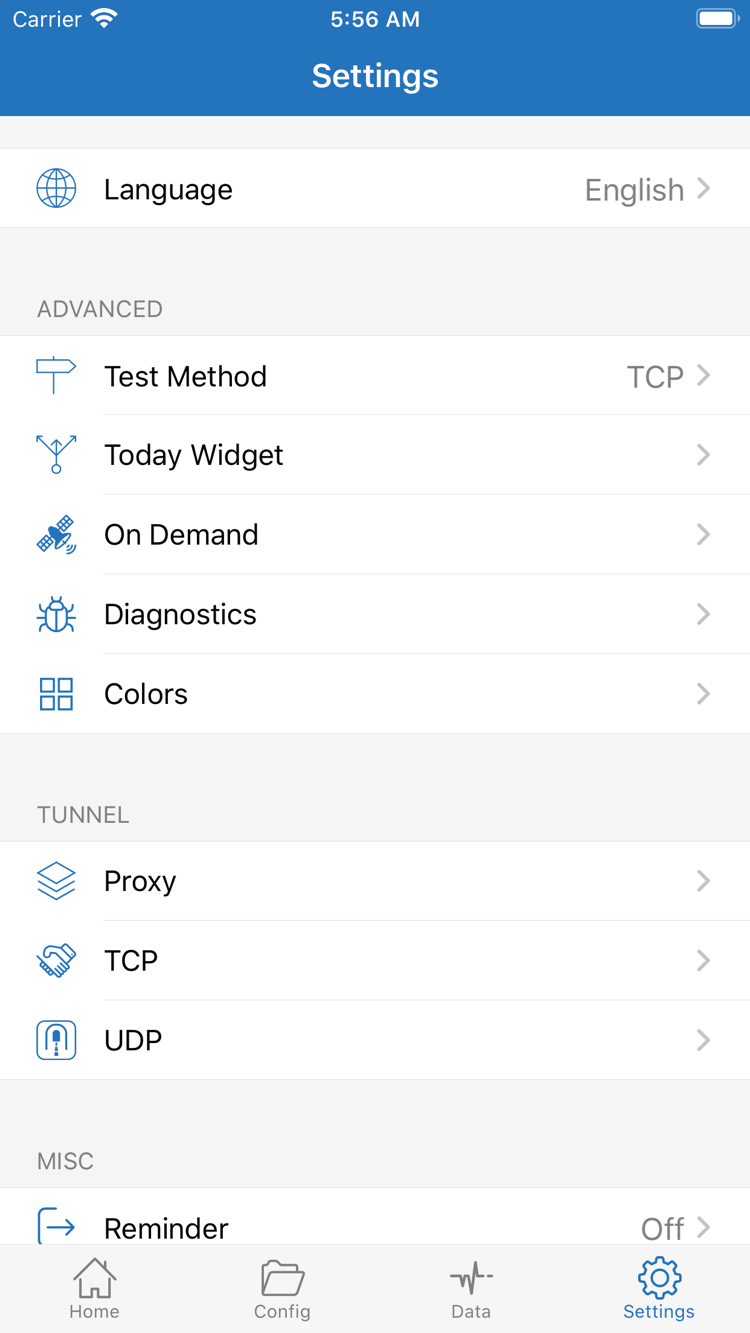
Open Settings and check Test Method. Use the same method before and after a change. For more detail, use Diagnostics to review the available diagnostic information and note what you were doing and which destination produced the error. Diagnostic text may include server addresses or connection details; remove subscription authentication parameters, passwords, and other private information before sharing it. Don’t change every option under Proxy, TCP, and UDP just to troubleshoot one webpage.
Automatic Connections and Speed: Check These Last
Only after a manual connection passes verification, open Settings and configure On Demand for your actual network conditions. After changing it, check what happens when you join and leave the relevant networks. An automatic trigger does not guarantee a successful remote connection. If the app reconnects unexpectedly, disable the relevant conditions, verify the manual connection again, and restore conditions one at a time.
If the connection works but feels slower than expected, compare your local network using the same device, destination, and mode, then compare other servers you already have. Connectivity Test results do not translate directly into download speeds. The destination service, remote route, and your device’s current network can all affect performance. Reproducible results are more useful for troubleshooting than changing several settings at once.
After troubleshooting, keep the server, mode, and Config file that produced a verifiable connection. Restore any required rules or automatic connection conditions one at a time. For protocol fields and rule keywords, see the quick reference; for help with multiple subscriptions, updates, deletion, and backups, see the subscription and server management manual. This guide ends once you have a connection you can verify; you don’t need to adjust every setting the first time.